Do I Turn Off Data Roaming When Using an eSIM?
The Most Confusing Setting in Travel Tech
You've bought your eSIM. You've scanned the QR code. You land, turn off airplane mode, and then you see it — the Data Roaming toggle. Do you turn it on? Off? Which SIM? This is where most travelers either get confused or make an expensive mistake.
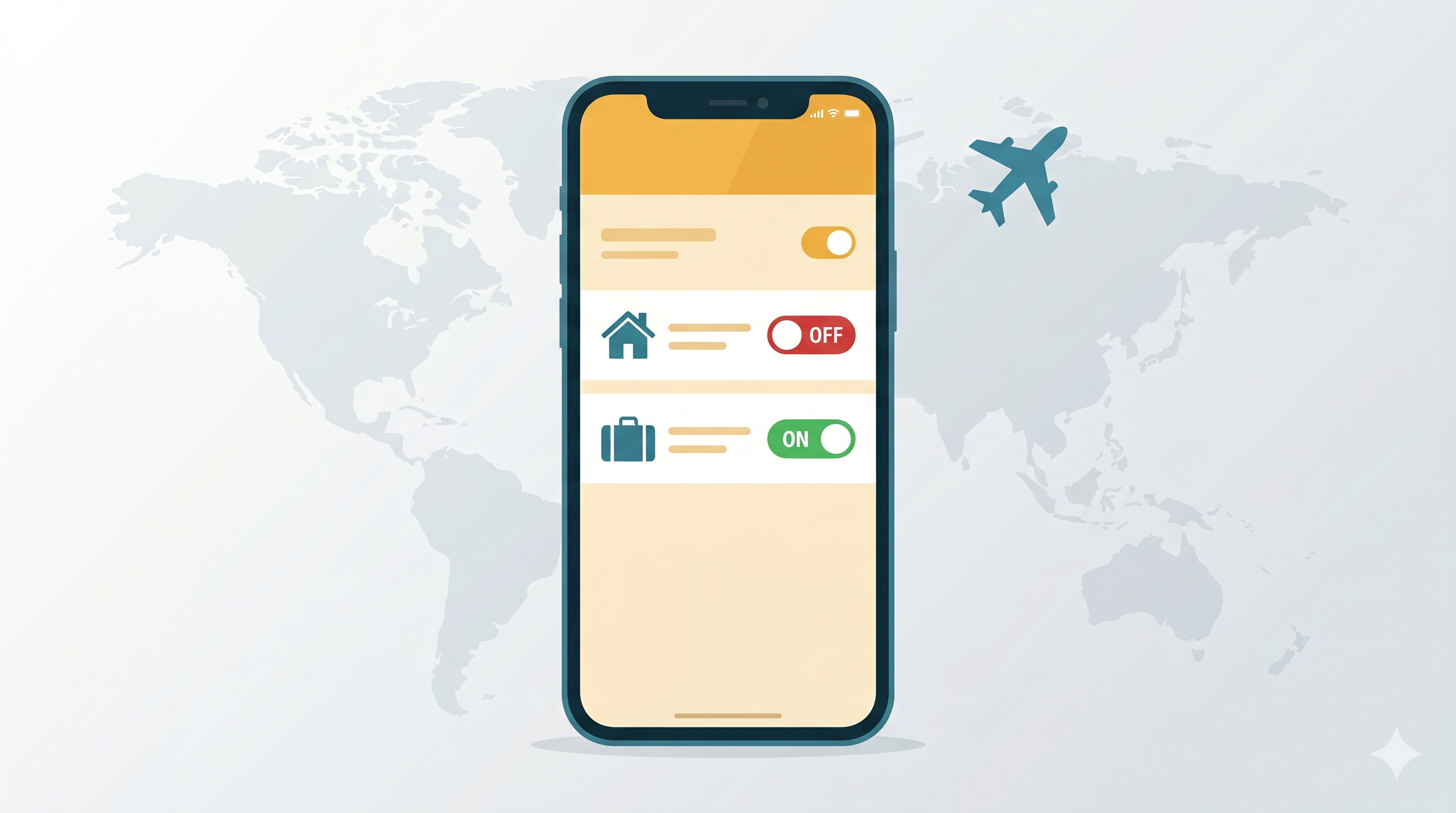
Here's the short answer: turn roaming OFF on your home SIM, and turn roaming ON on your travel eSIM. Both steps matter.
Why You Need Two Different Settings
Your phone may now have two active lines: your home SIM (or home eSIM) and your travel eSIM. They need opposite roaming settings, and here's why.
Your home SIM with roaming ON is how you end up with a four-figure phone bill after a week in another country. Background apps — cloud photo backups, email sync, OS updates — use data silently. Your home carrier charges for every megabyte at international roaming rates. Leaving this toggle on is the single biggest mistake international travelers make.
Your travel eSIM with roaming OFF simply won't work. Travel eSIMs connect to local partner networks in your destination country. The device technically calls this "roaming" even though you're paying a flat rate through your eSIM provider. Without roaming enabled on the travel eSIM line, your phone refuses to connect to those partner networks and you get no signal.
The rule of thumb: data line = travel eSIM, roaming off = home SIM.
Step-by-Step: iPhone
- Go to Settings → Cellular (or Mobile Data)
- Tap your home carrier line → toggle Data Roaming OFF
- Go back and tap your travel eSIM line → toggle Data Roaming ON
- Still in Cellular settings, set Cellular Data to your travel eSIM line
- Confirm by opening a browser — you should have connectivity
Step-by-Step: Android (Most Devices)
- Go to Settings → Network & Internet → Mobile Networks (or Connections → SIM Manager on Samsung)
- Select your primary/home SIM → toggle Mobile Data OFF and Roaming OFF
- Select your travel eSIM → toggle Mobile Data ON and Roaming ON
- Set the travel eSIM as your Default Data SIM
Note: Samsung devices sometimes show a single unified Data Roaming toggle. If you've set your travel eSIM as the primary data SIM, keep roaming ON and you're set.
What About Calls and SMS?
You don't need to change anything for calls and texts. Most travelers keep their home SIM active for calls and SMS — this lets contacts reach you on your regular number, and apps like WhatsApp stay tied to your home number regardless of which SIM is providing data.
iMessage users: go to Settings → Messages → Send & Receive and confirm your home number is still selected. The messages will arrive using your home number's identity while the actual data flows through the cheaper travel eSIM.
Special Cases Worth Knowing
On a plane or cruise ship — In-flight and maritime cellular networks are billed at significantly higher rates because they route through satellite links, not land towers. The safest approach is airplane mode plus the airline or ship's Wi-Fi plan. If your eSIM provider offers a specific in-flight or cruise day pass, compare that rate to Wi-Fi pricing before you enable any cellular roaming in the air or at sea.
Crossing borders — When you drive or train across a border, your phone briefly searches for a new network. If your home SIM's roaming is on, this handoff can trigger data usage before your travel eSIM locks onto the new network. Keeping home SIM roaming OFF at all times eliminates this risk entirely.
Auto-updates and cloud backups — Even with roaming off on your home SIM, if the travel eSIM line is set to allow background data, iOS or Android may start syncing photos or downloading updates the moment you have signal. Pause these manually until you're on Wi-Fi: Settings → App Store → toggle off automatic downloads (iPhone), or restrict background data for specific apps (Android).
If Your eSIM Still Isn't Connecting
Most travel eSIMs configure APN settings automatically. If data won't start after following the steps above:
- Toggle airplane mode on, wait 10 seconds, then off — this forces your phone to re-register on the network
- Go to Settings → Cellular → [Your Travel eSIM] → Network Selection, turn off Automatic, and manually select one of the available networks from the list
- If you still have no data, check the APN settings from your eSIM provider's documentation and enter them manually
For Business Teams: No More Configuration Chaos
Individual setup is manageable. Doing this across a team of twenty people before a conference trip is a different challenge. The wrong settings on one device can generate hundreds in unexpected charges that end up buried in expense reports.
SYLA Business handles this at the platform level — preconfigured plans, usage monitoring, and alerts so you know if a line is consuming unexpected data before it becomes a billing problem.
Talk to our team to see how SYLA keeps business connectivity clean, predictable, and in your control.
Start managing eSIMs smarter
See how SYLA Business gives your team global connectivity in 190+ countries from one dashboard.
Book a Demo